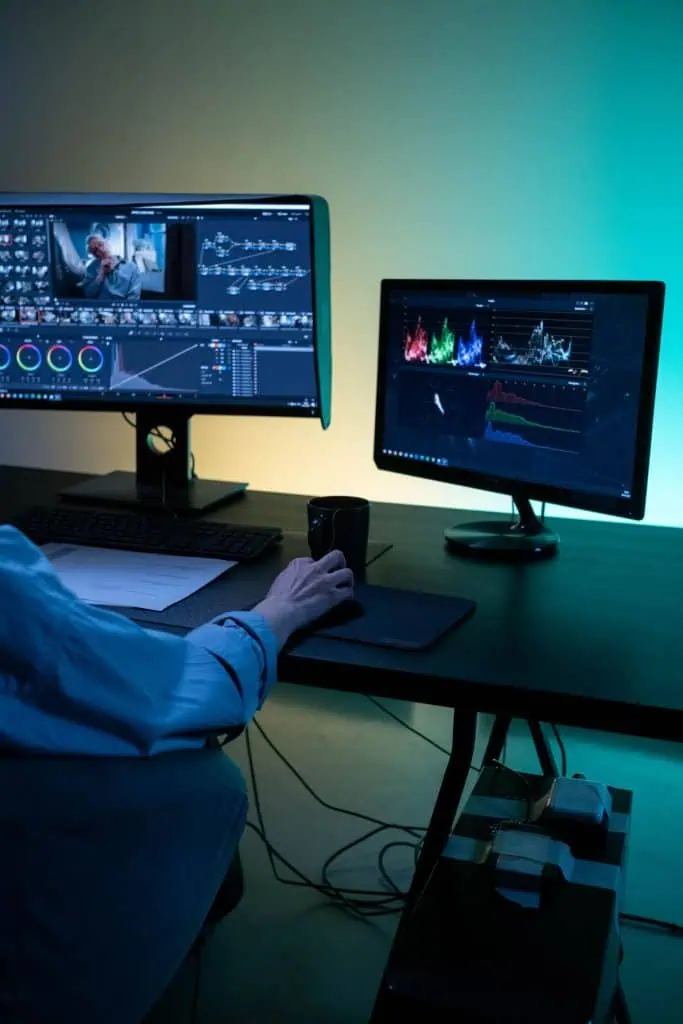
Not every song needs a big-budget music video. For most independent artists, a simple lyric video or visualizer is the fastest way to give a new release something to watch on YouTube and social media. In this guide I’ll show you how to make a lyric video step by step, plus how to build a basic visualizer. It’s part of our releasing series that begins with how to mix and master a song at home, because your video is only as good as the mix underneath it.
To make a lyric video, export your final mixed and mastered song, type out the lyrics, choose a simple background (a photo, a looping video clip or a color), and use a video editor to place each lyric line on screen in time with the vocal. Export as an MP4 in 16:9 for YouTube.
You can do all of this with free software. Let’s go through it.
What You Need
- Your final audio file. Use the mastered WAV or high-quality MP3. Don’t make the video until the mix is final. If you’re still working on it, see how to mix vocals and our comparison of AI mastering tools.
- Clean lyrics. Typed out, line by line, with sections marked. Our free Songwriter Suite lets you copy your lyrics as text.
- Background visuals. Your own photos or video, or free stock footage from a site whose license allows commercial use.
- A video editor. See the options below.
🎸 Free download
Not sure which guitar is right for you?
Get the free Guitar Gear Cheat Sheet: match your style, budget and hands to the right guitar in 2 minutes. You’ll also get my 30-Day Practice Plan as a bonus.
Send My Cheat Sheet →Lyric Video Maker Options
| Tool | Price | Platforms | Best for |
|---|---|---|---|
| DaVinci Resolve | Free version; Studio $236 | Windows, Mac, Linux | Full control, professional results |
| CapCut | Free app (with paid options) | iPhone, Android, desktop | Quick phone-made lyric videos |
| iMovie | Free | Mac, iPhone, iPad | Simple titles over clips on Apple devices |
| Your DAW’s video track | Included | Varies | Checking sync, not designing |
Prices checked on the makers’ sites and app stores at the time of writing. Online tools like Kapwing and Canva also offer lyric and text-animation features in the browser; check their current plans before you rely on them.
My pick for beginners: if you’re on a phone, CapCut is the quickest. If you want more control and don’t mind learning, DaVinci Resolve’s free version is remarkably capable.
Step-by-Step: How to Make a Lyric Video
- Finalize your song. Export the mastered audio.
- Prepare the lyrics. One line per text card. Short lines read better on screen, so split long ones.
- Pick a visual style. Decide on one or two fonts, a color palette and a background that matches the song’s mood. Keep it consistent.
- Create a new project in 16:9 at 1920×1080 for YouTube. (Make a 9:16 version later for vertical platforms.)
- Import the audio and background. Put the audio on its own track and the background underneath everything.
- Add markers at each vocal line. Play the song and tap the marker key as each line starts. This makes syncing much faster.
- Place text at each marker. Each line appears just before it’s sung and disappears as the next one begins. Add simple fades or a gentle slide.
- Export as MP4 and watch it all the way through on a phone and a computer before uploading.
Lyric Video Styles to Try
| Style | What it looks like | Effort | Good for |
|---|---|---|---|
| Static card | One background image, lines fade in and out | Low | First releases, acoustic songs |
| Looping footage | A short video loop with text on top | Low–medium | Moody or atmospheric songs |
| Kinetic typography | Words move, scale and appear on the beat | High | Upbeat pop, rap, hooks |
| Performance + lyrics | Footage of you playing with lyrics overlaid | Medium | Singer-songwriters, worship |
| Visualizer + lyrics | Waveform or bars with lyrics underneath | Medium | Electronic, instrumental breaks |
If this is your first lyric video, start with a static card or looping footage. You’ll learn the syncing workflow without fighting complex animation, and you can get more ambitious on the next release.
A Syncing Shortcut
Syncing is the slowest part, so here’s a trick: before you open the video editor, play the song in your DAW or any audio app and write down the time each lyric line starts, to the nearest tenth of a second. Then in the video editor you just type each line and set its start time from your list. It’s much faster than dragging text boxes back and forth while the song plays.
Design Tips for Lyric Videos
- Readability first. Big, clean fonts with strong contrast. Add a subtle shadow or dark overlay if the background is busy.
- Keep text in the safe area. Leave space around the edges so nothing gets cut off on different screens.
- One or two lines at a time. Don’t put a whole verse on screen.
- Match motion to the song. Slow fades for ballads, quicker cuts and pops for upbeat tracks.
- Highlight the hook. Make the chorus title line bigger or a different color.
- Use your own artwork. Your cover art or band photos make the video feel like part of the release.
Music Visualizer
A music visualizer is a video where shapes, bars or waveforms move with the audio. It’s an easy alternative or add-on to a lyric video.
Simple ways to make one:
- Audio-reactive effects in your editor. Many video editors and online tools can generate waveforms or spectrum bars from an audio track.
- Static art plus motion. Put your cover art on screen with a slow zoom, a subtle particle effect or a looping light leak.
- Looping clip. A short, seamless loop of footage (rain on a window, a candle, a road at night) can carry a whole song.
Visualizers work especially well for instrumental tracks, worship songs used in services, and songs where you want listeners focused on the sound.
Formats for Each Platform
| Platform | Shape | Notes |
|---|---|---|
| YouTube | 16:9 (standard on desktop) | YouTube recommends MP4; vertical and square uploads are supported and the player adapts |
| Spotify Canvas | 9:16 vertical | 3–8 second loop, 720–1080 px tall, MP4 or JPG; Spotify advises footage without talking, singing or rapping |
| Vertical social video | 9:16 | Cut a 15–30 second chorus clip from your lyric video |
Spotify’s Canvas guidelines specifically say Canvas clips won’t sync with your lyrics, so for Canvas use a short visual loop rather than a lyric card.
Copyright and Permissions
Only use visuals you own or have a license for. “Found on Google” isn’t a license. Use your own footage, footage you’ve paid for, or stock clips whose license covers music videos. And if your song is a cover, a lyric video of someone else’s song may need permission from the song’s publisher, since lyrics are part of the copyrighted composition. This isn’t legal advice; see YouTube’s copyright resources and talk to a music attorney if you’re unsure.
If you’re writing worship songs that quote Scripture, check the translation’s permission rules before putting full verses on screen. Our guide on how to write a worship song covers ESV guidelines.
Upload Checklist
- Title format: “Artist – Song Title (Lyric Video)”
- Description: lyrics, credits (writers, producer), streaming links
- Thumbnail: cover art plus “Lyric Video” text, readable at small size
- Add the video to a playlist with your other releases
- Pin a comment with a streaming link
Common Mistakes
Text out of sync. Lines should appear slightly before they’re sung, not after.
Hard-to-read fonts. Script fonts and thin text vanish on phones.
Too many effects. Spinning, bouncing words get tiring fast. Keep motion simple.
Wrong aspect ratio. Make separate 16:9 and 9:16 versions instead of stretching one.
Typos. Proofread every line before export. Fans will notice.
Frequently Asked Questions
What’s the easiest way to make a lyric video?
Use a phone editor like CapCut or a free desktop editor. Import your song, add a background, then place each lyric line as text in time with the vocal and export an MP4.
How long does it take to make a lyric video?
A simple lyric video for a three-to-four-minute song can take a few hours, mostly for syncing text. Using markers at each line speeds it up a lot.
Can I make a lyric video for free?
Yes. DaVinci Resolve has a free version, and CapCut and iMovie are free apps. Use your own photos or properly licensed free stock footage for the background.
What size should a lyric video be for YouTube?
16:9 is the standard aspect ratio for YouTube on a computer, and 1920×1080 is a common size. YouTube recommends uploading MP4 files.
Can I put a lyric video on Spotify?
Spotify Canvas is a short 3–8 second vertical loop, not a full lyric video, and Spotify says clips won’t sync with lyrics. Use a visual loop for Canvas and post the full lyric video on YouTube.
Sources and Further Reading
- YouTube Help: Recommended upload encoding settings – official format and aspect-ratio guidance.
- Spotify for Artists: Canvas guidelines – official specs for Canvas loops.
- DaVinci Resolve – the free professional video editor.